The Wyvern platform

A complete toolset.
A single-operator workflow.

Every part of Wyvern supports practical live operation: prepare quickly, control the complete picture and make changes as the show runs. Explore the tools behind the single-operator workflow.

01 / Profiles & live switching

Save the shot. Preview it. Take it live.

Build your production as reusable profiles, then preview and switch between them inside Wyvern’s live broadcast engine.

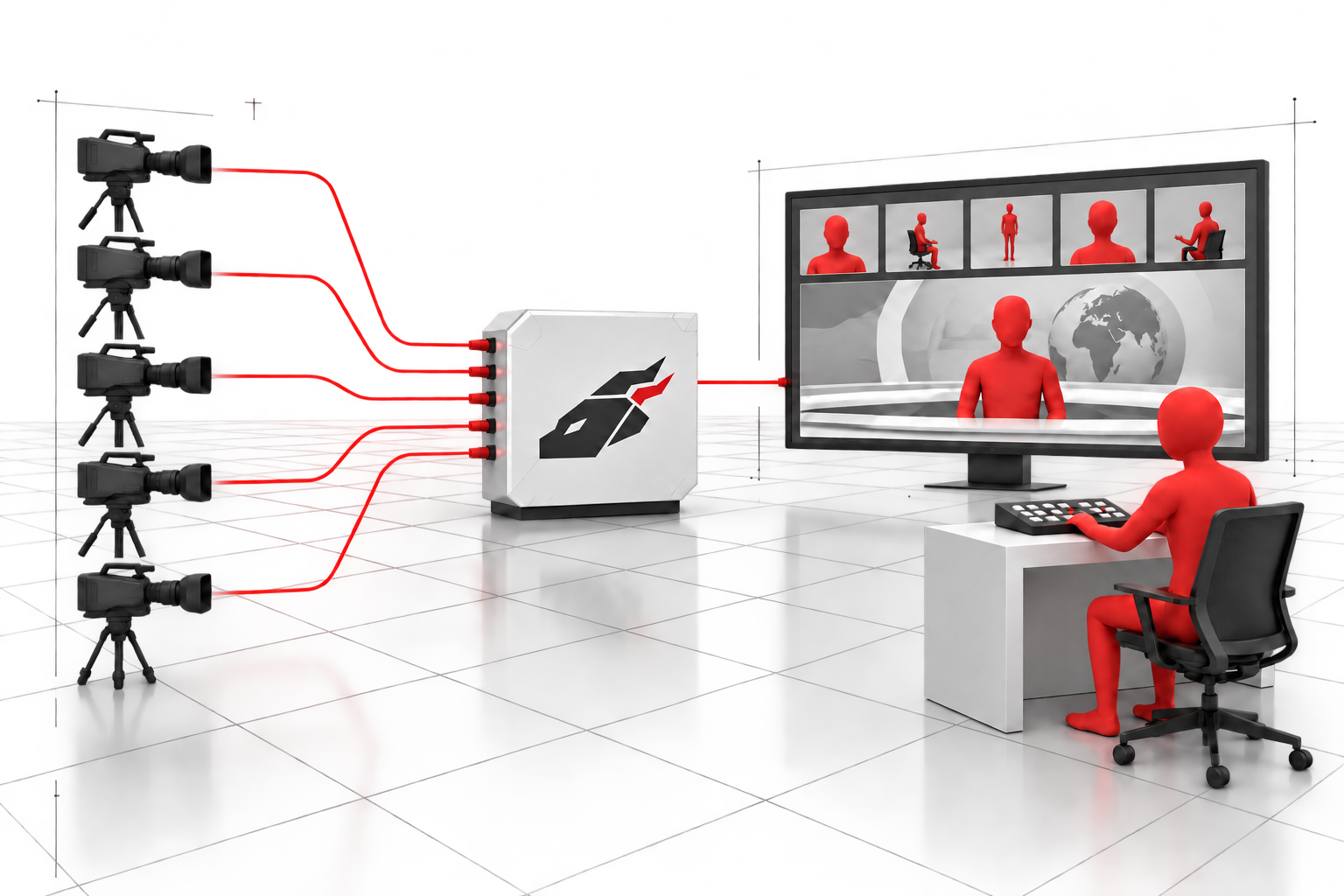
Five camera inputs connected to one switched programme
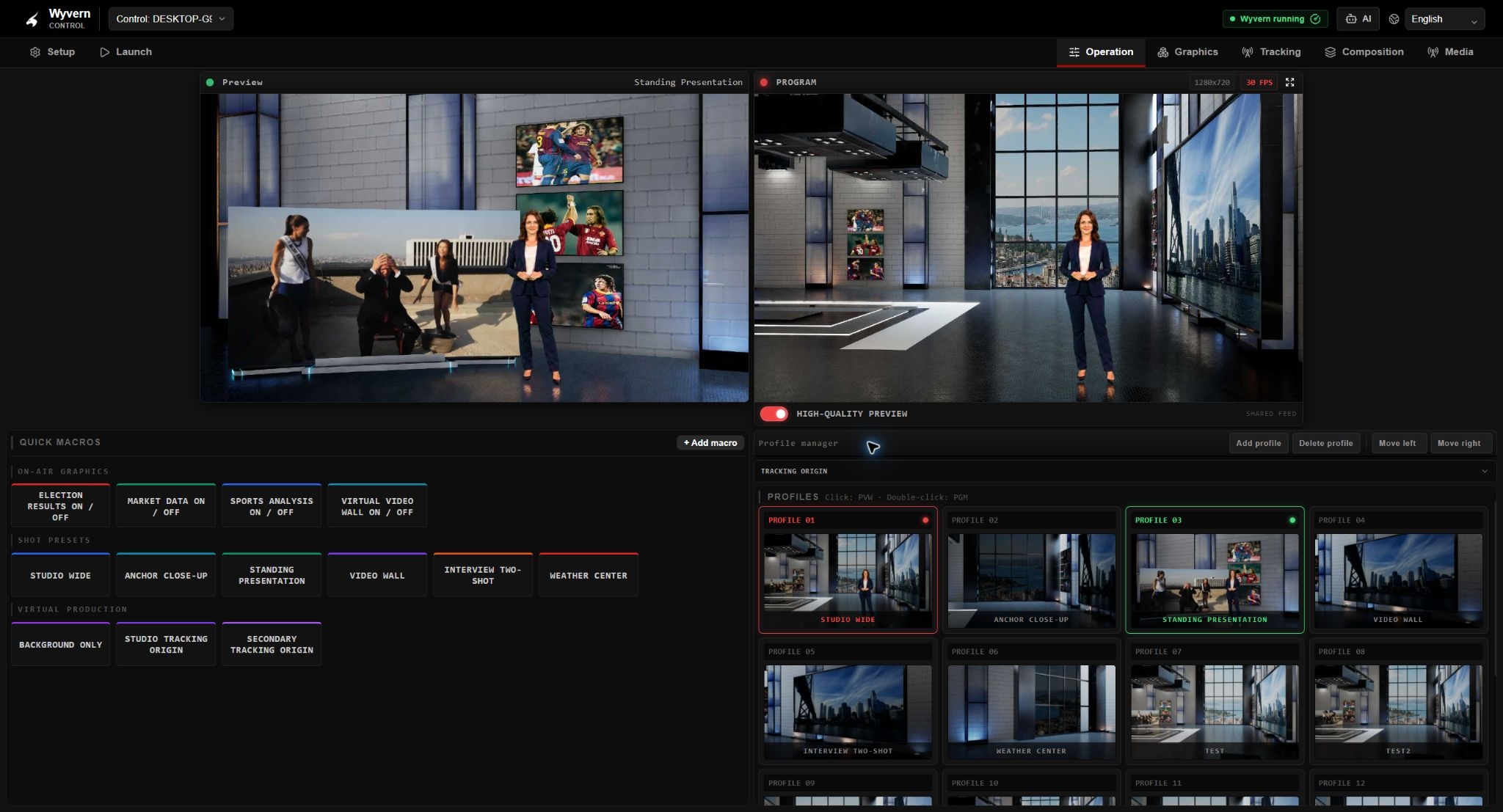
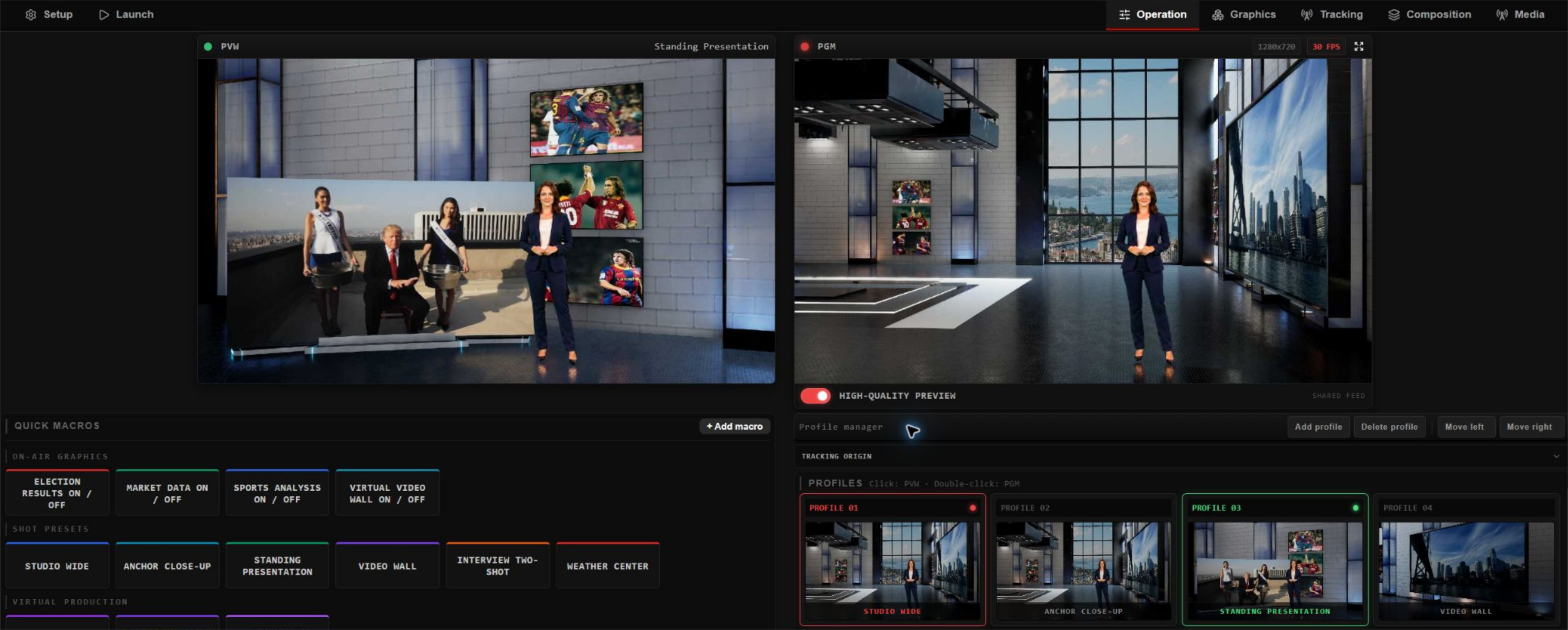
Preview and programme in the Wyvern interface
Preview and programme

What is a profile?

A profile is a shot template that stores your scene settings, including exposure and colour grading, together with composition layers and the production you have built. Different profiles can recall different production setups, tracked cameras and complete looks.
Click to preview

Click a profile to see its camera angle, scene and complete composition on the Preview (PVW) monitor. Check the next picture while Programme stays on air.

Double-click for an instant hard cut

Double-click a profile to take its complete composition straight to Programme with an instant hard cut inside the same running engine.

Up to five HD cameras on one system

Bring up to five HD camera inputs into one hardware system and switch them into one live programme. Keeping composition and switching on one engine reduces computers, connections and operating complexity, helping lower hardware costs and simplify production.

02 / Control & deployment

Control the show from any connected device.

Install your Wyvern engines in the rack or machine room. Reach them through a web browser on a phone, tablet, laptop or desktop—wherever you have access to the production network.

Wyvern engine
Wyvern EngineOne connected production
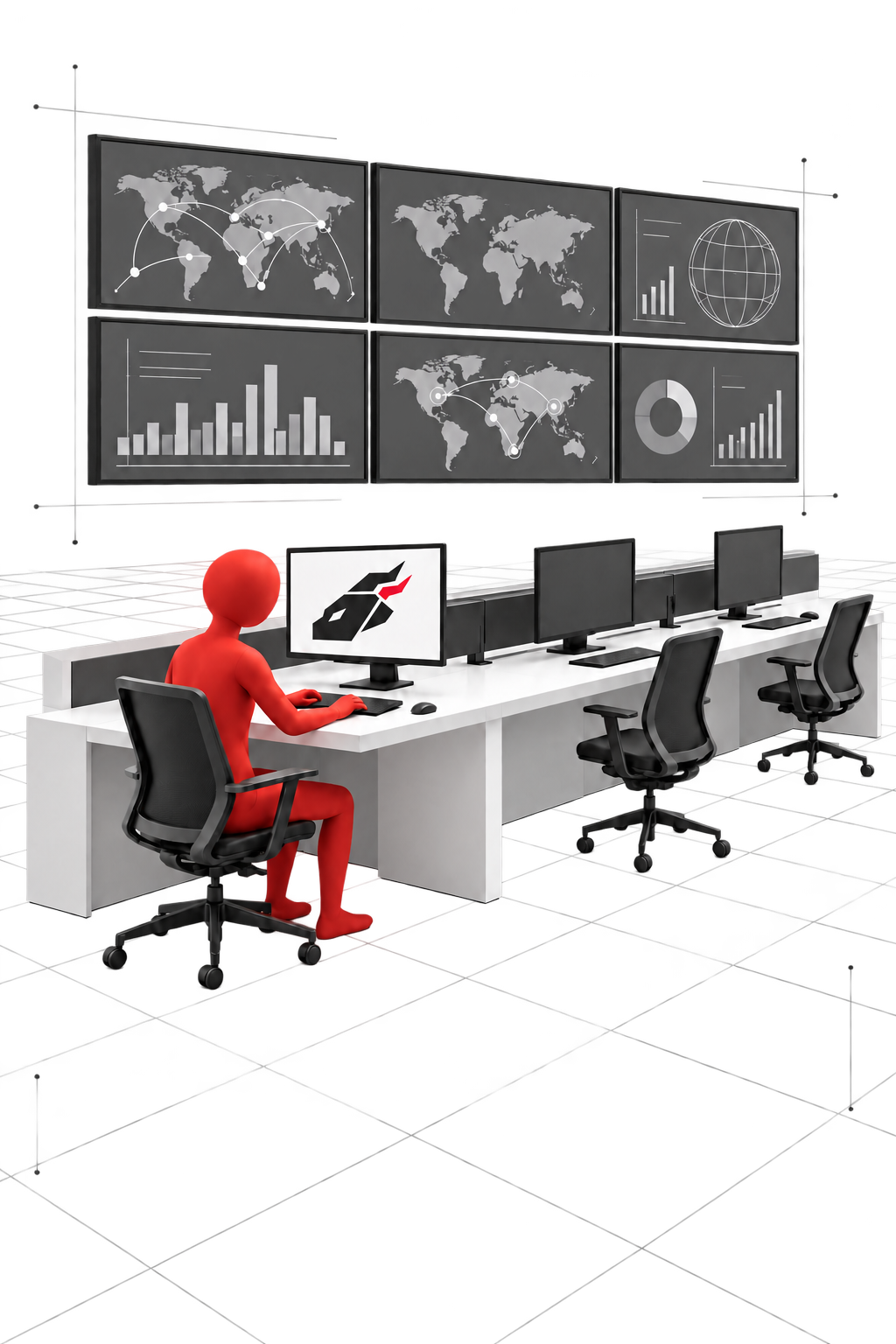
Operator at a newsroom desk
NewsroomEdit graphics. Switch cameras.
Operator using a laptop
Computer or laptopPrepare and manage the show.
Operator using a phone during studio rehearsal
PhoneSwitch scenes on the move.

Your engines in the rack

Keep rendering on the Wyvern servers in your rack or machine room. Access their controls from other rooms and connected devices across the production network.

Phone, tablet, laptop or desktop

Open the web-based control interface on a compatible device and connect to the engine you need. Prepare, operate and monitor the production wherever your device can reach the production network.

Run the show from the newsroom

Access macros, recall shot profiles, preview the next view and use the live switcher from a connected newsroom desk. Keep the show controls where your team works.

Prepare graphics from the graphics department

Access Wyvern from the graphics room to edit text, colours, images, media and prepared looks. Prepare content for the upcoming show while the engine stays in its installed location.

Make changes while the show is live

Reach the interface during the production to edit graphics, update content and prepare the next look. Add and use those graphics on air from the same web-based workflow.

Project launch and management

List all your projects and virtual sets in one place. Select and launch any project or set, and switch between them from the web interface.

Show-data transfer

Transfer supported show data while retaining machine-specific hardware settings.

HTTP/JSON integration

Connect supported commands and state to custom panels and production automation through HTTP/JSON.

Interface languages

Use the Wyvern interface in any language you want. All languages are supported, so your team can work in its preferred language.

03 / Keying & image

Key the presenter. Match the picture.

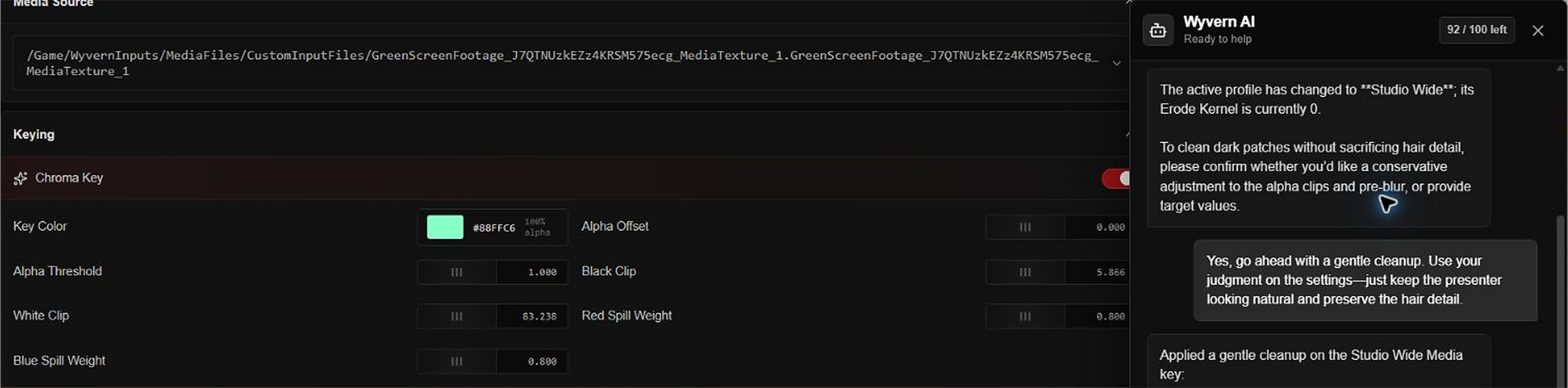
Key live camera media inside Wyvern, with AI-assisted adjustments, edge refinement and colour grading in the same production workflow.

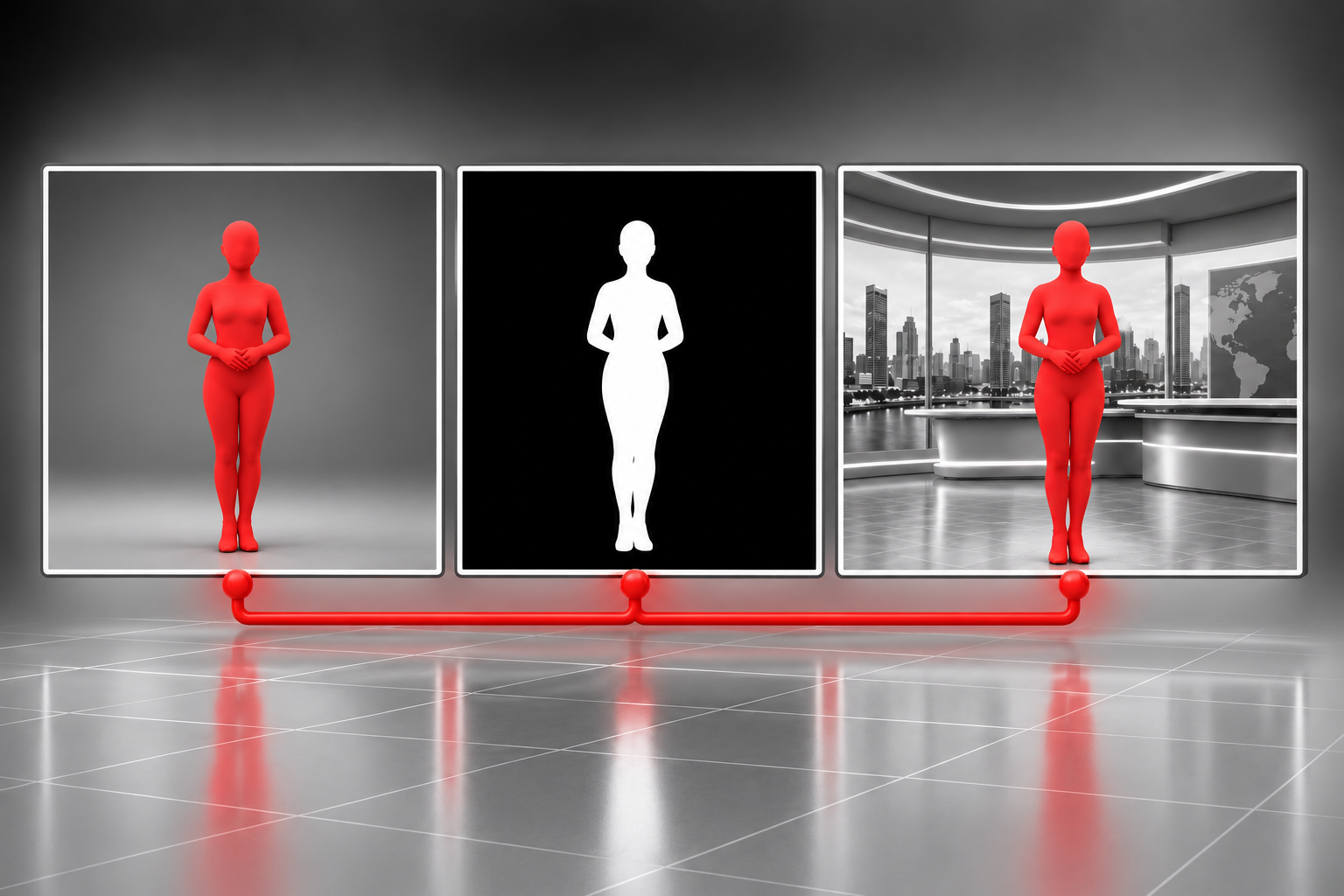
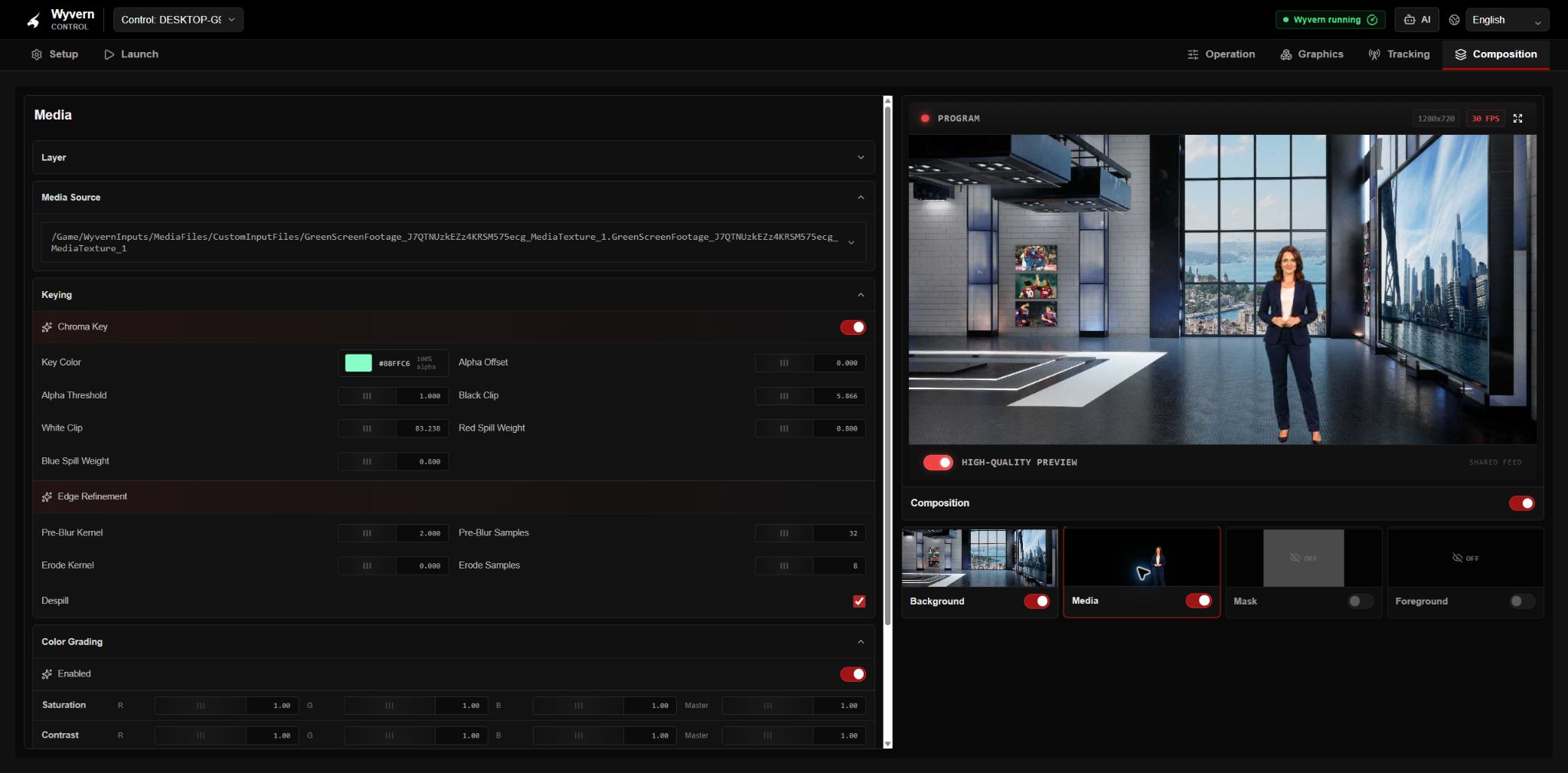
Three keying views: presenter source, silhouette matte and presenter composited over a virtual background
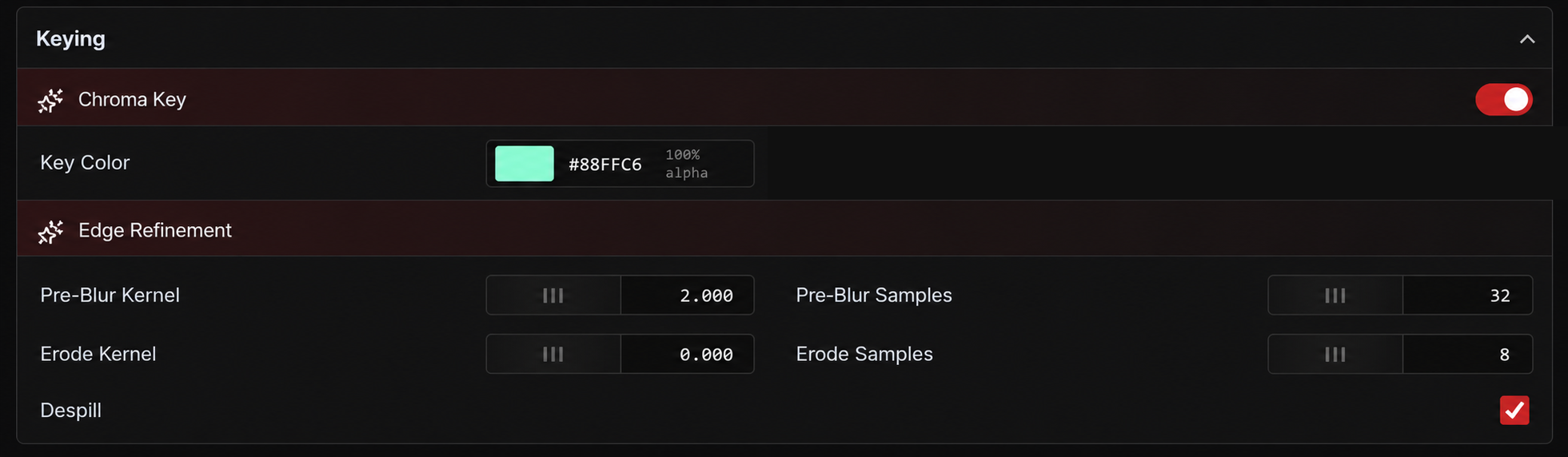
Chroma key and edge refinement in the Wyvern interface
Chroma key and edge refinement

Internal live keyer

Key camera media live inside the Wyvern engine. Adjust the key in the production interface and see the result in the composition.

AI-assisted key adjustment

Ask the assistant to help adjust key settings, then inspect the picture and refine the result while keeping control.

Colour grading

Adjust the camera media’s colour to match the virtual environment, keeping image adjustments alongside the keyer.

Edge refinement

Refine edges, clipping and spill around the presenter to improve how the keyed image fits the scene.

04 / Composition

Build the picture through clear layers.

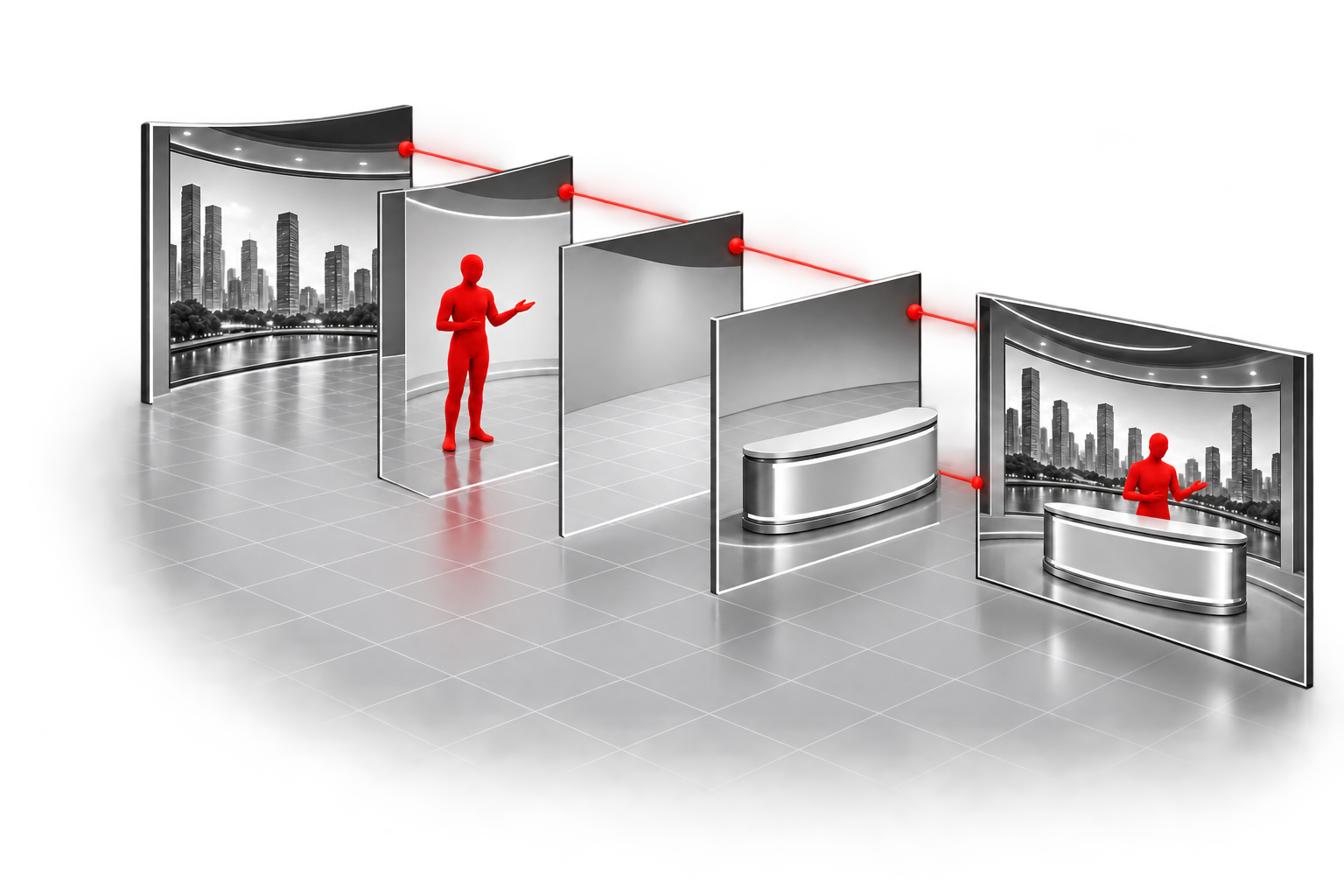
Bring camera media, virtual environments and 3D graphics together for green screen, AR, AR extension and LED/XR production. Keep the tools in one interface so a single operator can build the picture and respond quickly during the show.

Separate background, media, mask and foreground layers combining into the programme

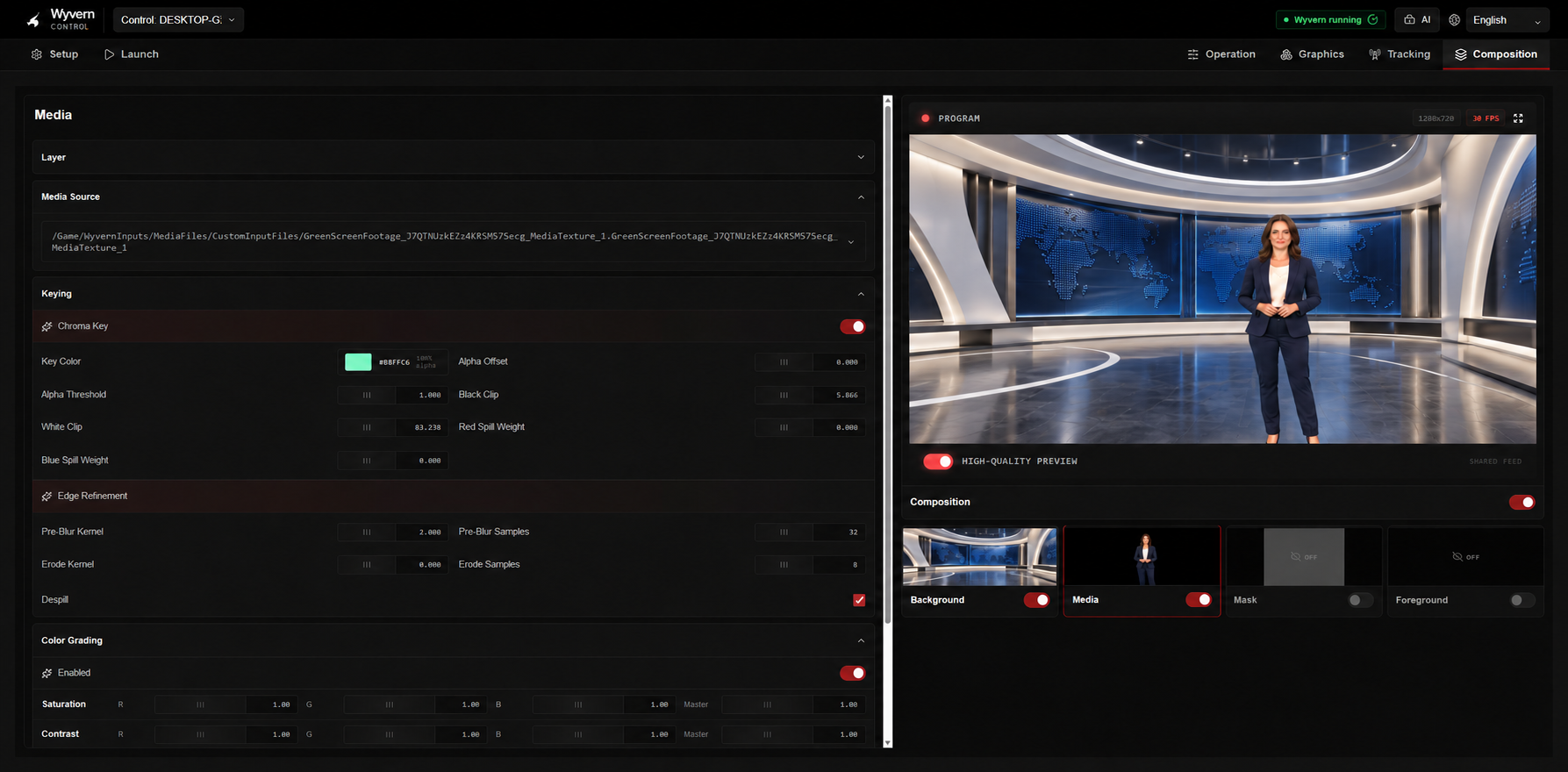
Composition

Composition · News anchor

One layer-based workspace

Build the picture through Background, Media, Mask and Foreground layers. Each layer brings its colour grading and relevant settings into the interface, so you can adjust the composition directly without building a complicated node graph. Keep preparation and live changes fast and practical.

AI-assisted rendering

Wyvern combines multiple AI rendering technologies to reconstruct pixels and improve visual quality while using the machine’s resources efficiently. Bring detailed virtual environments and graphics into your live composition with a balance of image quality and real-time rendering performance.

Green-screen virtual studios

Run multi-camera green-screen productions with live keying and hot-cut switching. Keep one profile on air while previewing another profile’s complete keyed composition live, ready for the next cut.

Augmented-reality graphics

Place 3D graphics alongside people and the physical set in the camera image. Bring visual information into the live production while keeping the real studio in view.

AR extension

Extend the physical studio with virtual elements and 3D graphics in an AR composition. Preview another profile’s live composition while the current profile stays on air, then switch when the next picture is ready.

Virtual set extension

Keep the physical set you need and extend the picture with virtual scenery. Define the retained studio area within the composition, so you can create a larger environment without rebuilding the whole physical set.

LED & XR workflows

Build LED wall panels and set up LED/XR extensions in the same interface. Grade the wall, extension and camera media, and control inner and outer frustum separation, rendering quality and graphics. A single Wyvern engine can be configured for resolutions up to around 10K, depending on hardware, scene complexity and the production configuration.

05 / Wyvern AI Assistant

Virtual production expertise. Inside Wyvern.

An AI assistant built on knowledge gathered from virtual production experts and put to work inside Wyvern. Understand the system, learn the tools, troubleshoot and take action—with 24/7 in-product assistance and the operator in control.

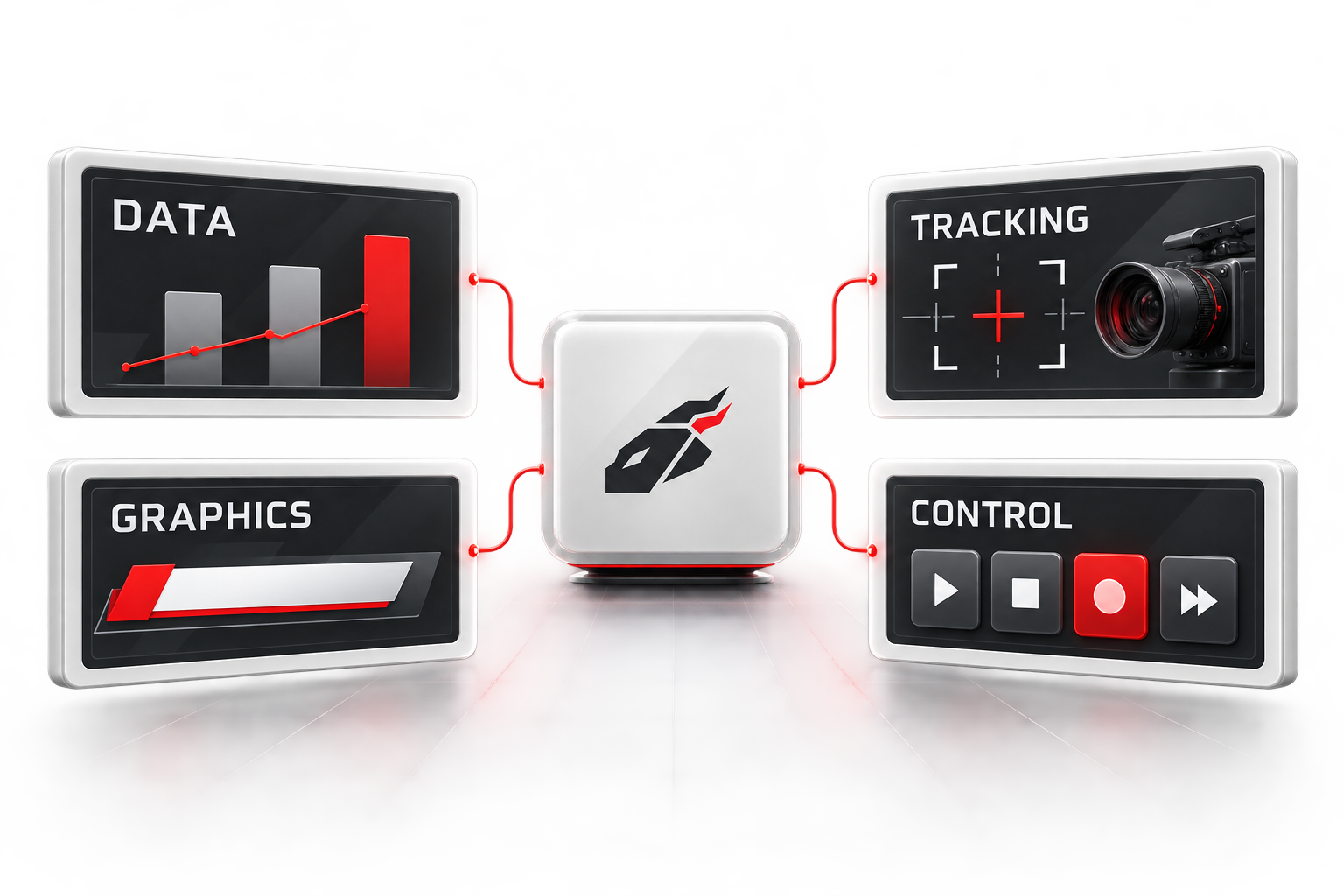
Small Wyvern logo connected to clear data, graphics, tracking and control panels
Wyvern AI conversation in the Wyvern interface
Wyvern AI conversation

Built on virtual production expertise

Knowledge from virtual production experts is brought together with Wyvern’s tools and workflows, giving you assistance specific to the production tasks you are working on.

Understand the current system

Use the available production state and settings to understand what is happening, what is selected and which controls can help with the task at hand.

Troubleshoot with context

Describe a problem and get help inspecting relevant settings, understanding possible causes and working through the next steps in the production workflow.

Learn as you work

Ask what a control does, how a feature works or which approach fits your production. Get explanations connected to the tools you are using.

Ask it to take action

Get help adjusting a key, updating graphics, preparing profiles or building macros. Inspect what changed and refine the result while keeping the final decision.

Connected across production

Bring assistance to composition, keying, graphics and data, tracking, profiles and macros. Move between guidance and supported production actions in the same conversation. Wyvern AI is available by subscription.

06 / Tracking & timing

Every tracked camera. One shared world.

Connect standard tracking systems and FreeD-enabled PTZ cameras. Run up to five tracked cameras simultaneously, with independent movement, lens and media timing inside the same Wyvern engine.

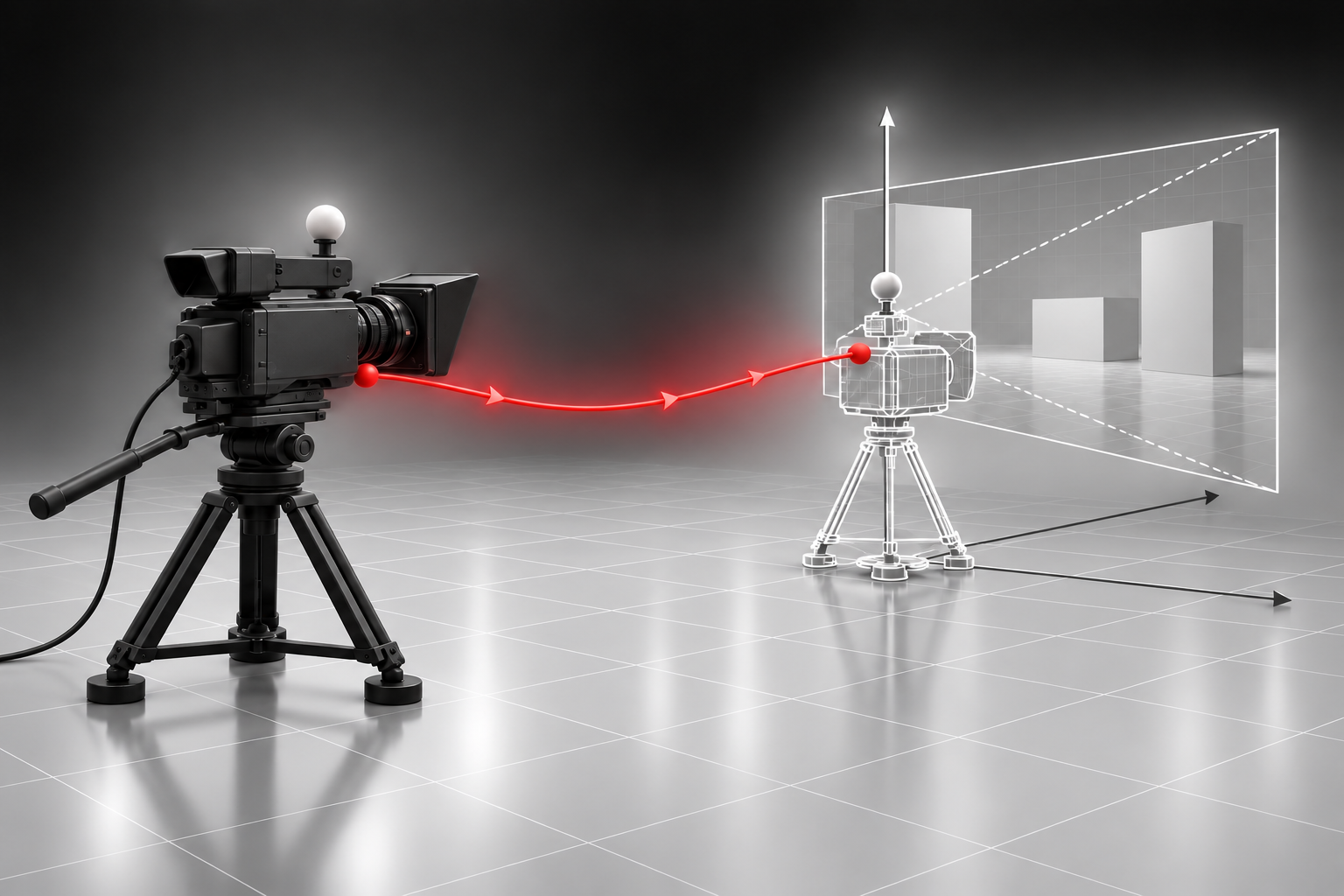
Tracking data flows from a physical camera to its virtual camera and the production scene
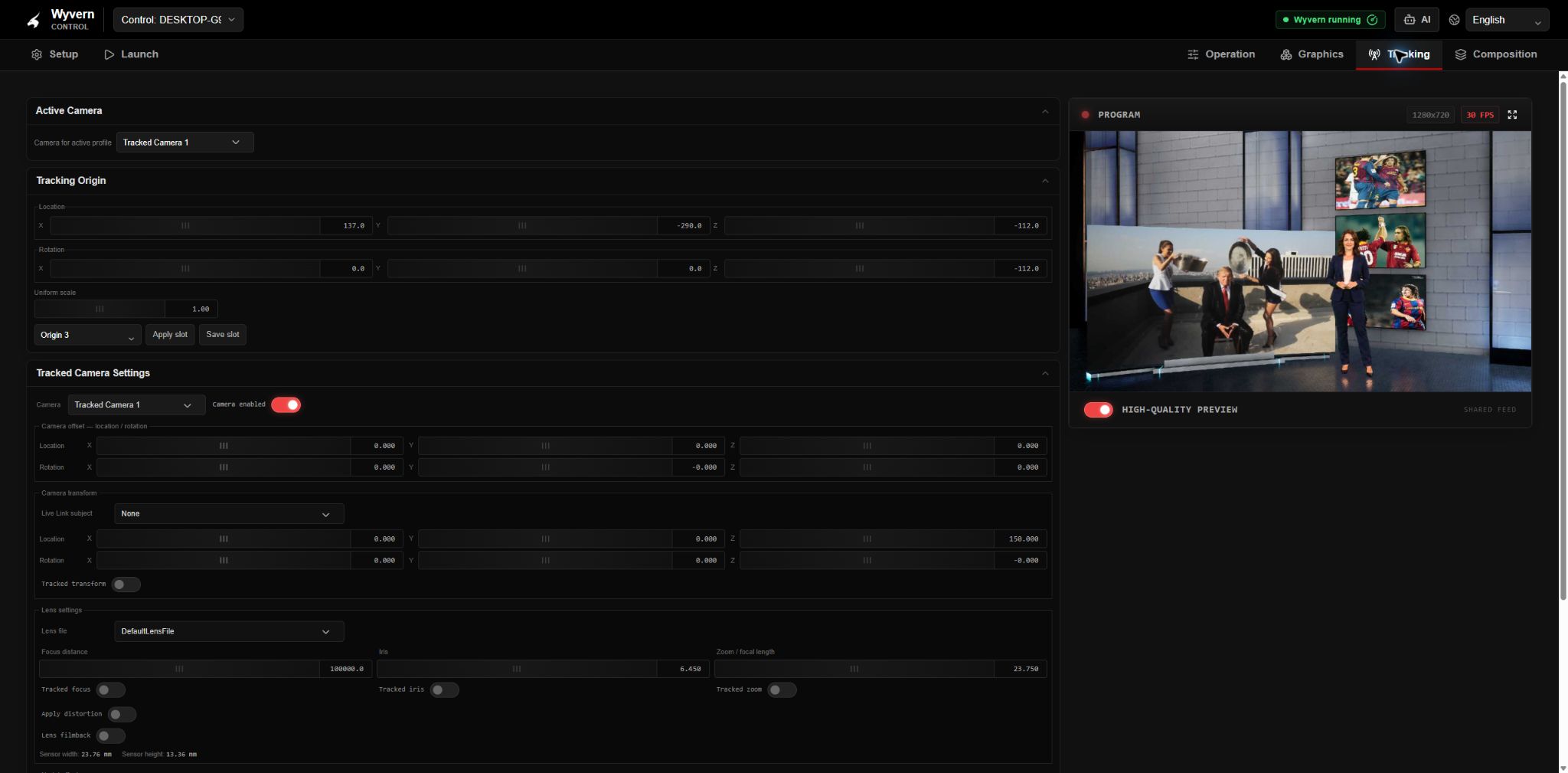
Camera tracking & lens controls
Tracked camera, position and rotation settings
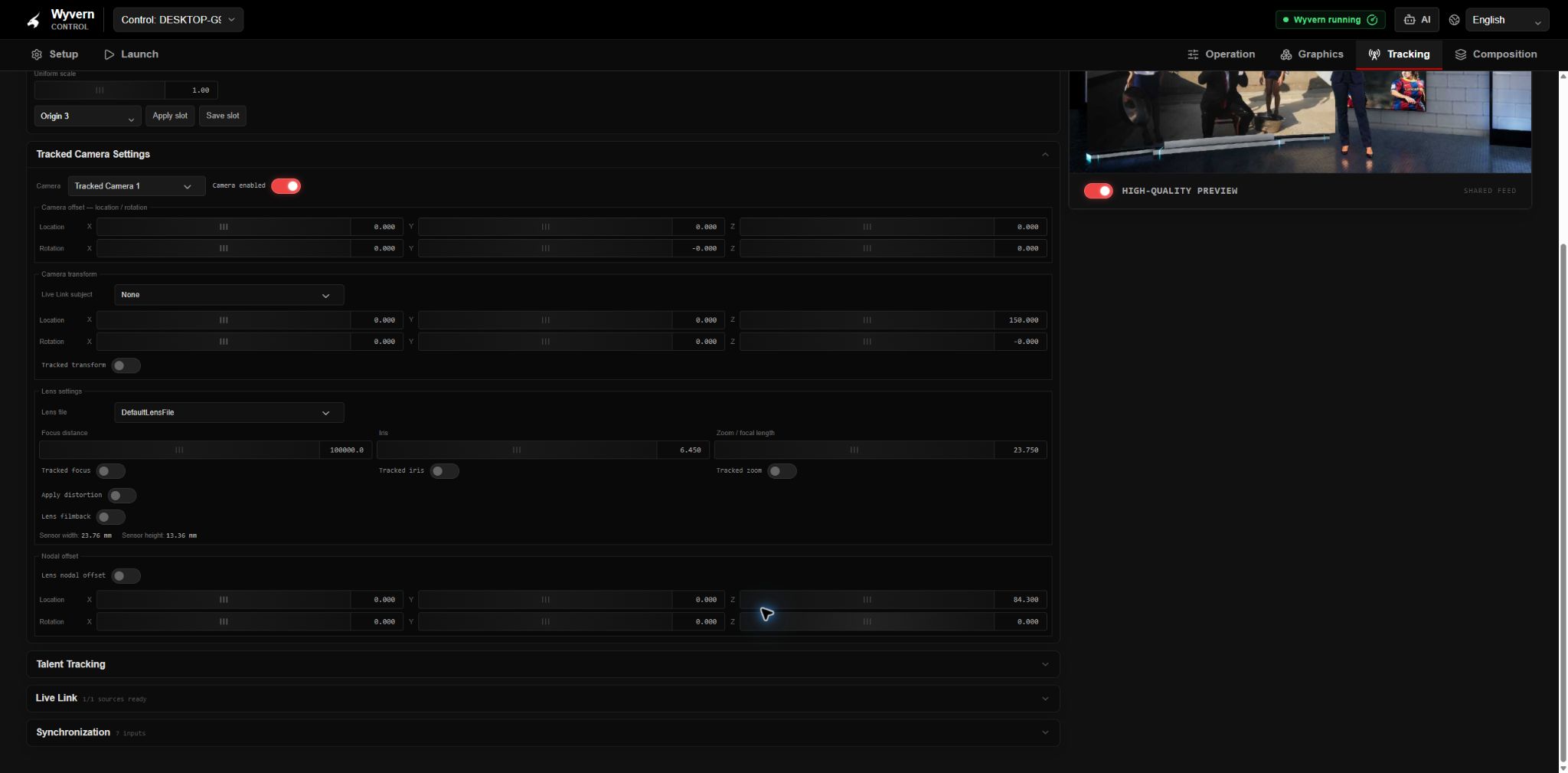
Focus, iris, zoom and lens settings in the same tracking workspace
Camera and lens settings in one workspace.

VIVE, Stype, Mo-Sys & FreeD

Connect standard camera tracking systems, including VIVE, Stype and Mo-Sys, and bring their movement and lens data into Wyvern.

PTZ cameras with FreeD output

Use any PTZ camera that provides compatible FreeD tracking output. Feed its pan, tilt and available lens data into the corresponding virtual camera.

Five tracked cameras, running together

Run up to five tracked cameras simultaneously inside one engine and the same virtual world. Each camera can receive data from a different tracking solution.

Switch between live tracked views

Keep all five virtual cameras running as the production continues. Recall their views through profiles and switch between them inside the same running world.

Independent movement and lens channels

Configure position, rotation, zoom, focus and iris separately. Select the tracked values each camera uses and adjust the individual channels in one workspace.

Separate timing for tracking, lenses and media

Adjust movement, zoom, focus, iris and media timing independently. Compensate for the different processing paths so the camera picture, lens changes and virtual view stay aligned.

Origins and camera placement

Set tracking origins and camera offsets in the production interface. Align different tracking sources to the same virtual scene.

07 / Live graphics & data

Live graphics. Live data. One production.

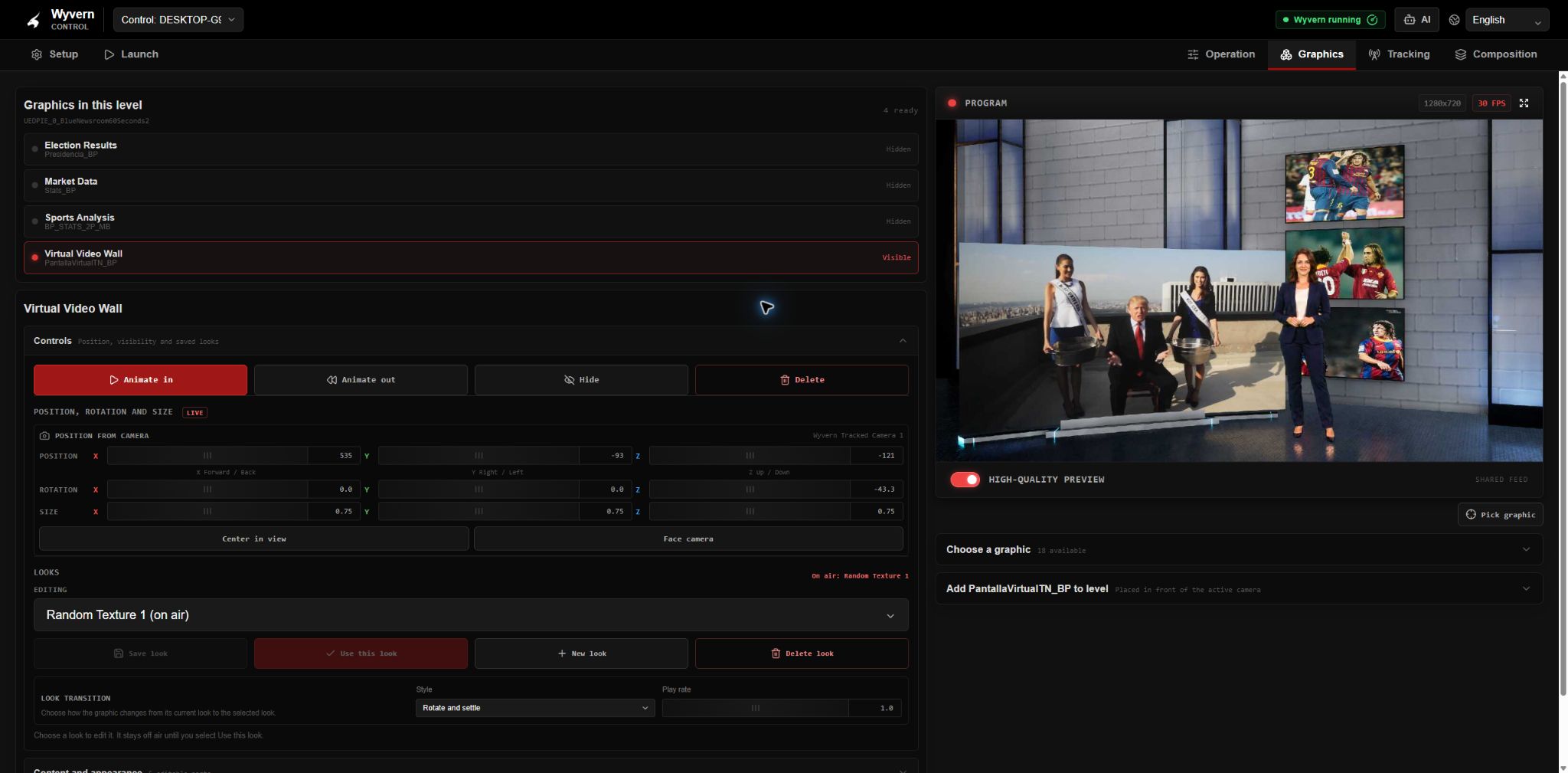
Bring editable graphics, animated looks and virtual screens into your live production. See the result in the programme preview while you update text, media and data as the show changes.

Virtual-screen controls, saved looks and live programme preview in the Wyvern interface
Virtual-screen controls, saved looks and live programme preview

Live text and captions

Edit names, captions and text fields during the show. Change fonts, sizes, colours and text styling directly in the production interface.

Images and media

Replace supported images, textures and media without rebuilding the prepared graphic.

Position, scale and visibility

Place graphics and virtual screens inside the scene. Adjust their position, rotation, scale and visibility to fit the camera view.

Animation control

Animate graphics in and out, and transition between prepared looks while the production is live. Bring information on screen, update it and move to the next look as the story develops.

Looks and templates

Build reusable graphic templates and save different looks for players, election candidates, weather conditions or programme segments. Switch and animate between those looks live, using the same prepared graphic.

Virtual screens inside the scene

Map video, images and live media onto virtual screens placed inside your scene. Create anything from a small display to a large video wall, without buying or installing a physical screen.

Live data-driven graphics

Connect supported graphics to APIs and other live data sources through a configured connection, so on-air content can update as the data changes.

08 / Macros & cues

Turn repeated actions into cues.

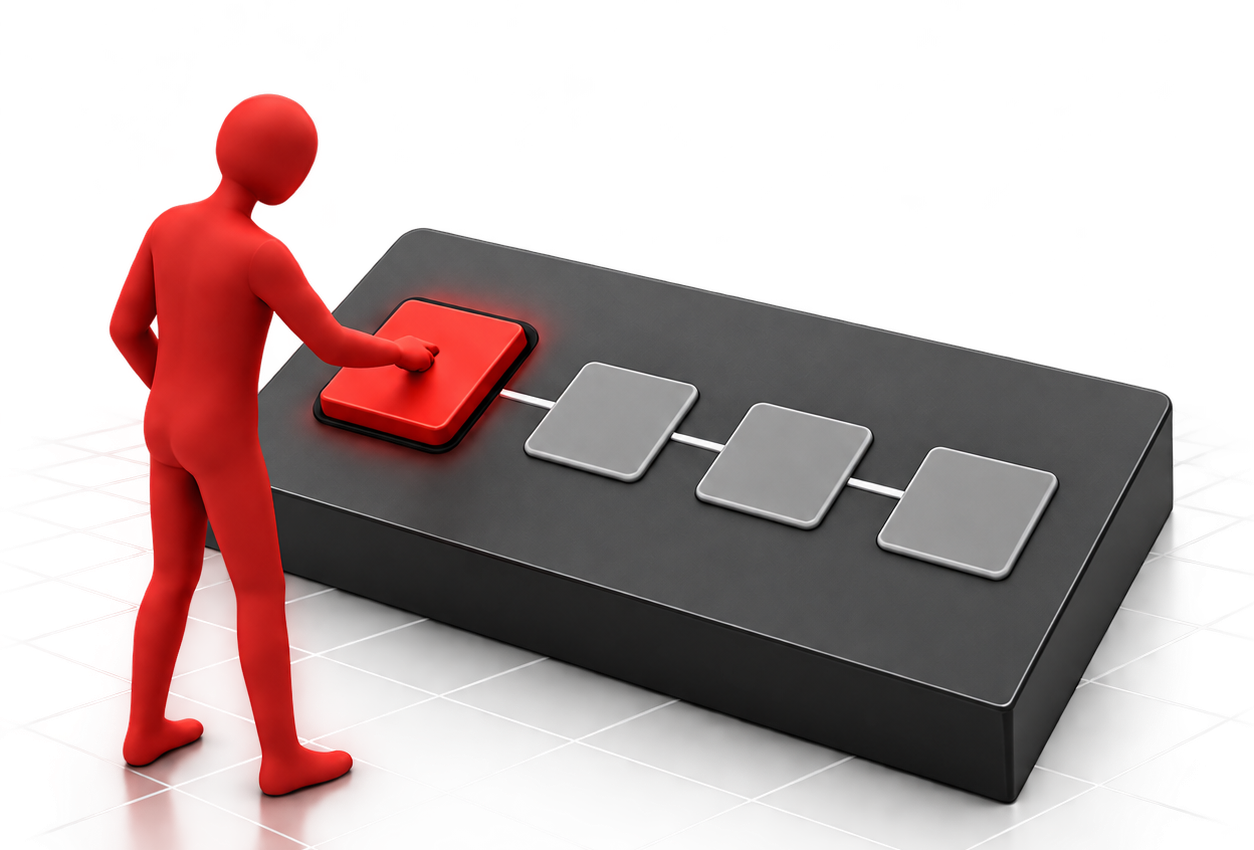
Put multi-step production actions behind buttons and cues, so one operator can respond at the pace of the live programme.

An operator triggers a prepared macro sequence
Quick macros and grouped cues in the Wyvern interface
Quick macros and grouped cues

Named macro buttons

Put recurring production tasks behind clearly named buttons.

Grouped production actions

Run supported graphics, content, camera and profile operations in a defined order.

Timed sequences

Prepare repeatable actions at configured time offsets.

Step-through cues

Advance through a prepared sequence one press at a time.

Editable and cancellable macros

Create, edit, run, cancel and remove macros in the control interface.

AI-assisted macro preparation

Ask Wyvern AI to prepare a supported sequence, then inspect and test it.

09 / Talent tracking

Track the talent. Let shadows and reflections follow.

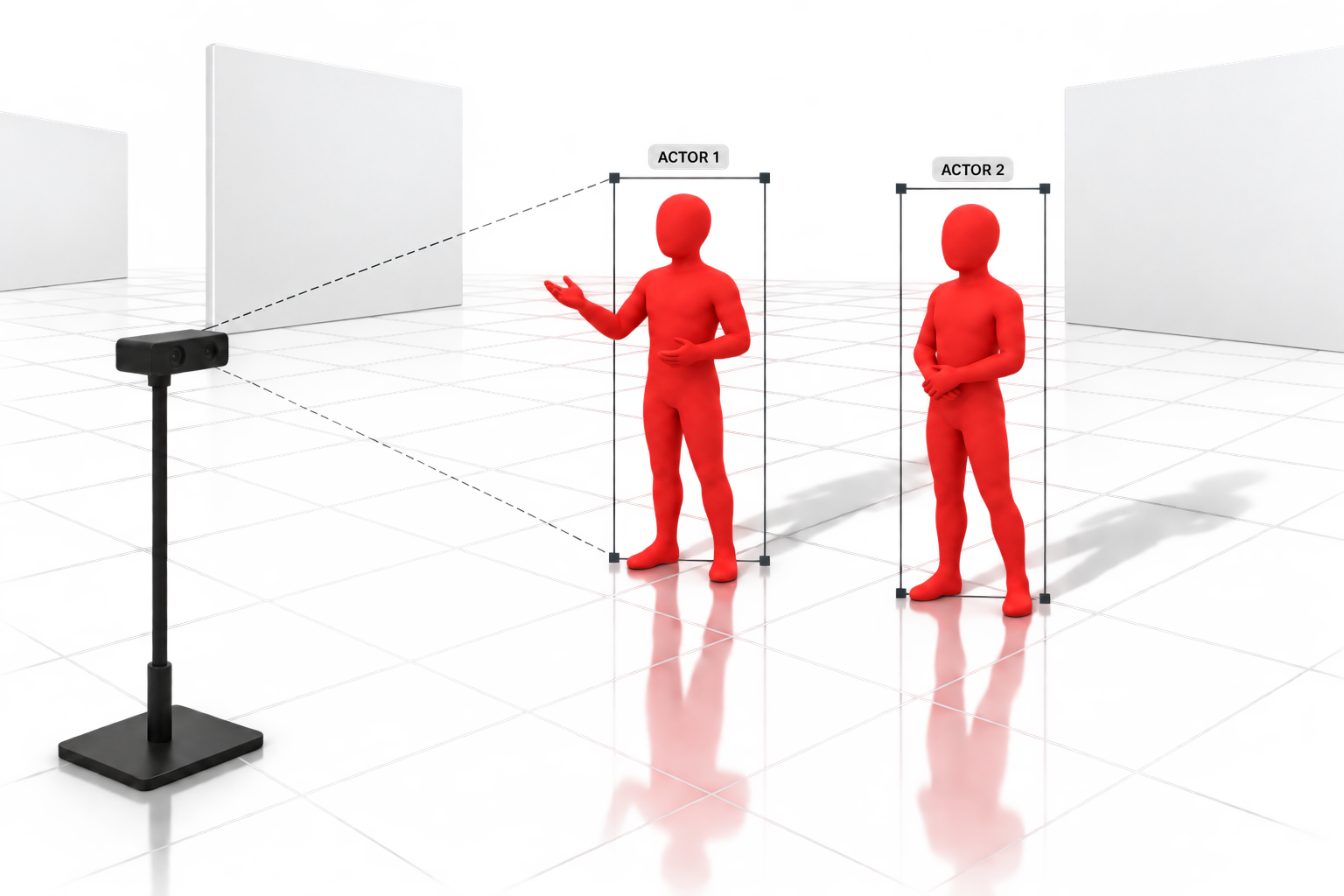
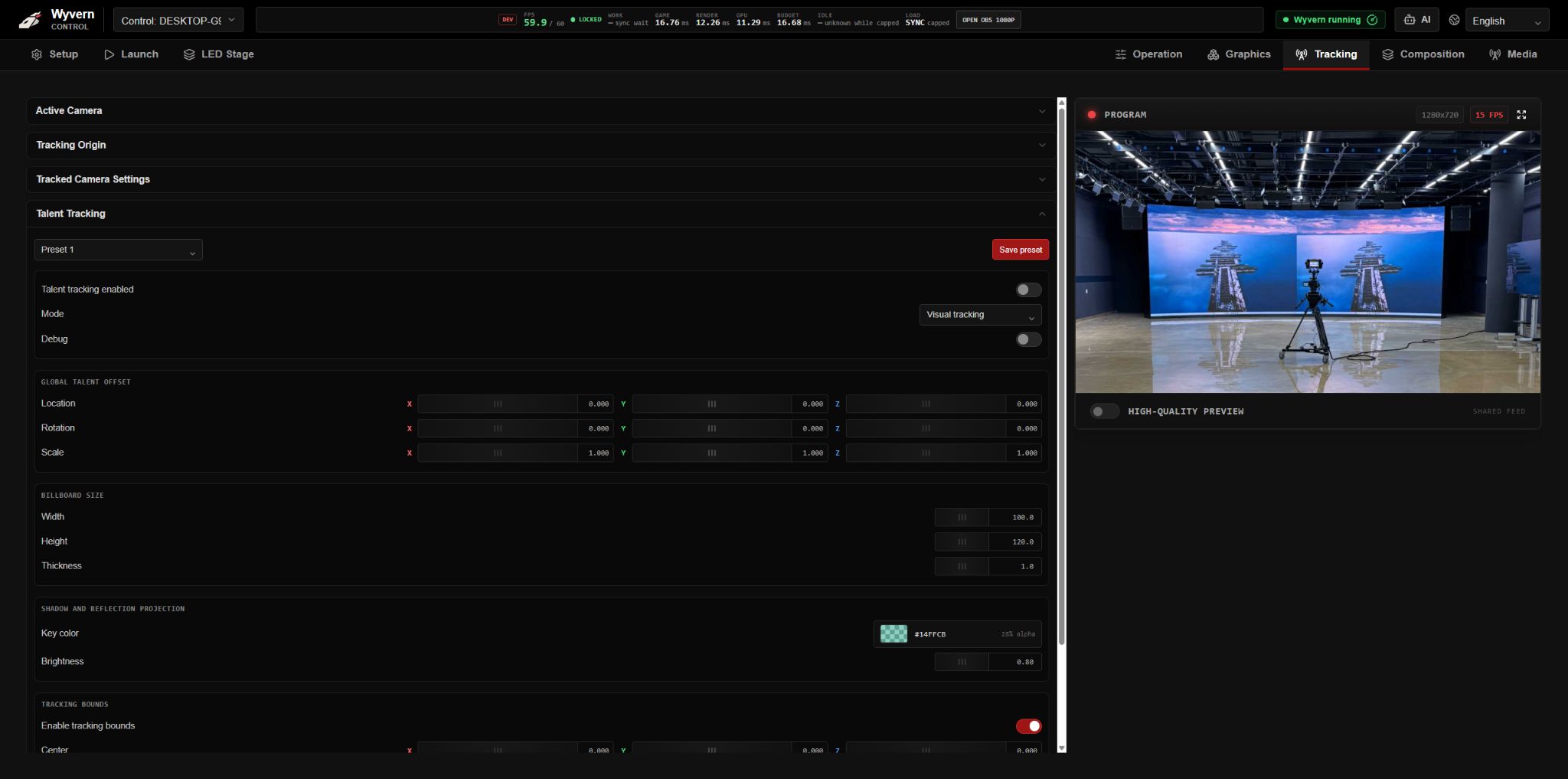
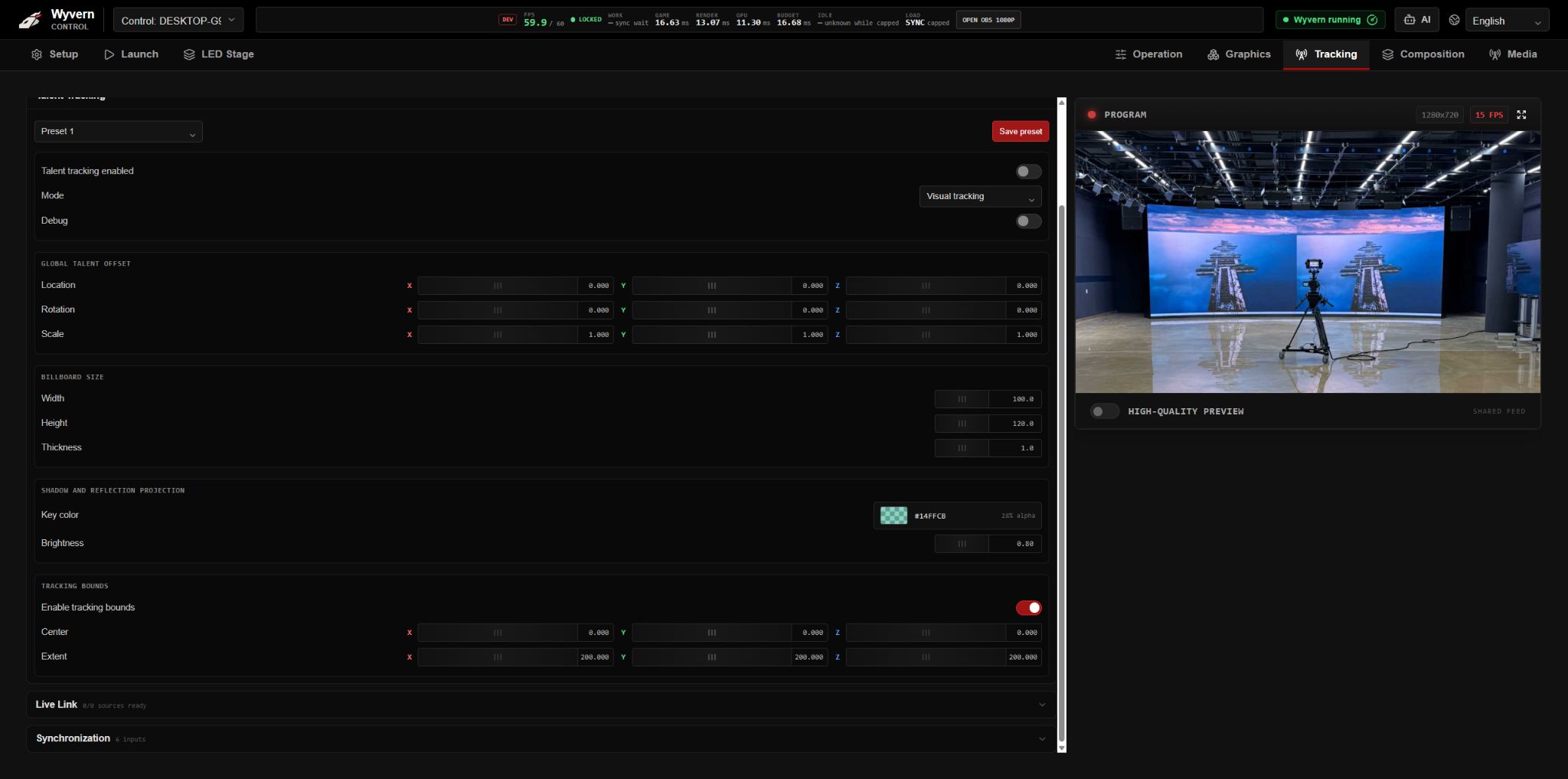
An automated vision system tracks each presenter’s whole body as a 3D object and projects that representation into the virtual scene. Shadows, reflections and depth relationships follow their movement across different camera angles.

Vision-based tracking of two presenters with shadows and reflections
Talent tracking
Talent tracking mode and configuration controls
Talent shadow and reflection projection settings and tracking bounds
Talent tracking configuration · Mode, projection and bounds

Multi-person vision tracking

Track multiple presenters automatically with a dedicated external vision camera and processing system.

Whole-body 3D tracking

Track the presenter’s whole body as a 3D object, rather than a single position. Project this representation into the virtual scene to maintain coherent depth, shadows and reflections from different camera angles as the presenter moves.

Depth-aware composition

Use tracked positions to place people in front of or behind virtual elements, maintaining their relationship with the scene.

Automatic position-driven shadows

Place and update virtual shadows at the talent’s feet automatically, driven by their tracked position and movement.

Automatic position-driven reflections

Drive reflections at the talent’s feet from the same tracking data. The reflections follow each presenter automatically as they move.

10 / Media & outputs

Bring your sources into the show.

Manage supported live inputs, file media, monitoring and outputs.

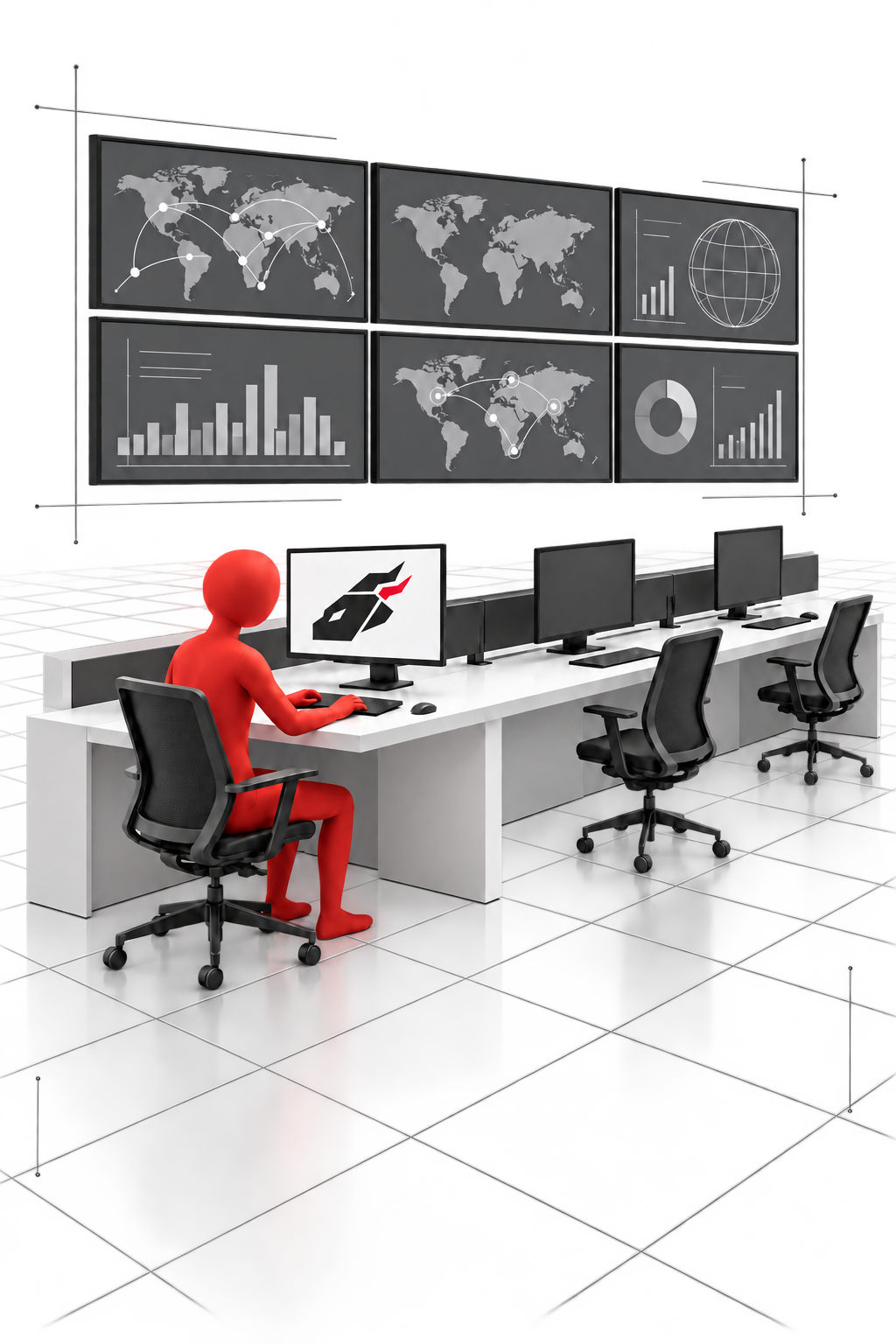
An operator manages multiple production media sources
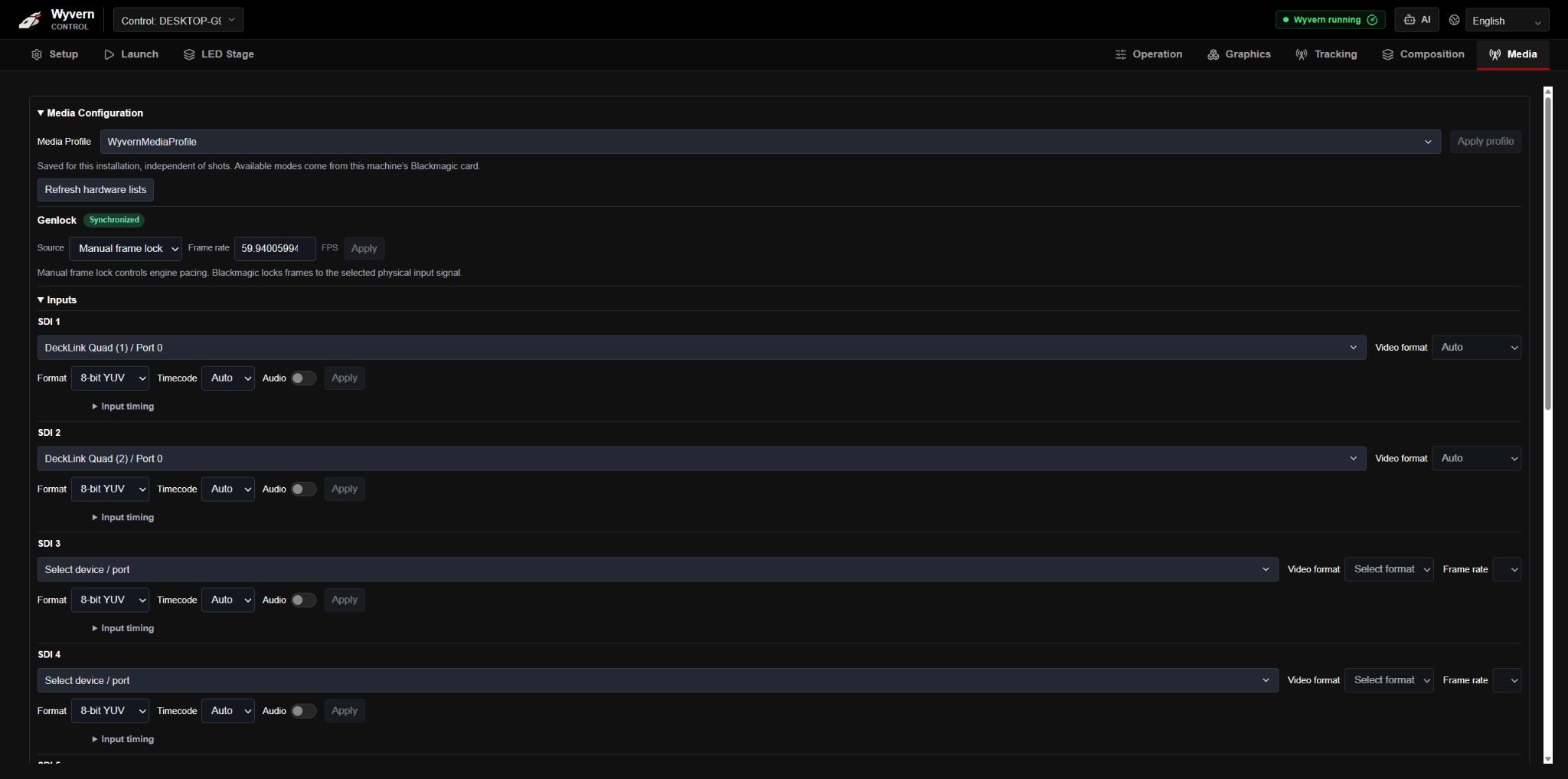
Media source settings in the Wyvern interface
Media source settings

SDI inputs

Receive camera feeds through supported Blackmagic Design capture hardware.

NDI sources

Bring compatible network video sources into the production.

File playback and image sequences

Play supported video files and image sequences within compositions and virtual screens.

Media across the scene

Reuse supported sources across backgrounds, layers and screens.

Browser programme preview

Monitor programme over the production network at 1280 × 720 and up to 60 fps; production output is configured separately.

Layer inspection

Inspect supported composition layers while keeping programme visible.

Configured output workflows

Configure supported output routing around the installed hardware, signal formats and engine count.

11 / Multi-engine control

Control multiple engines together.

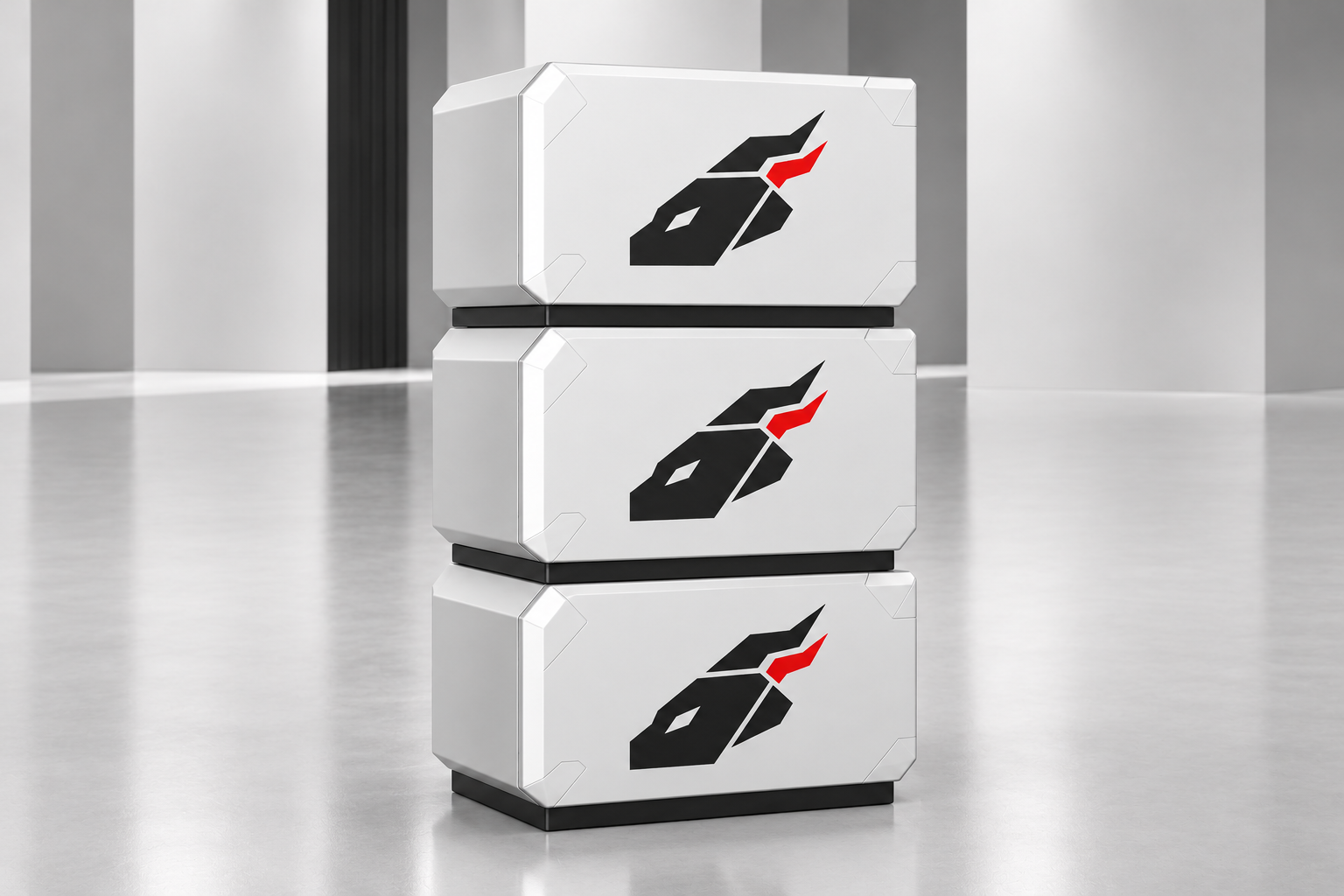
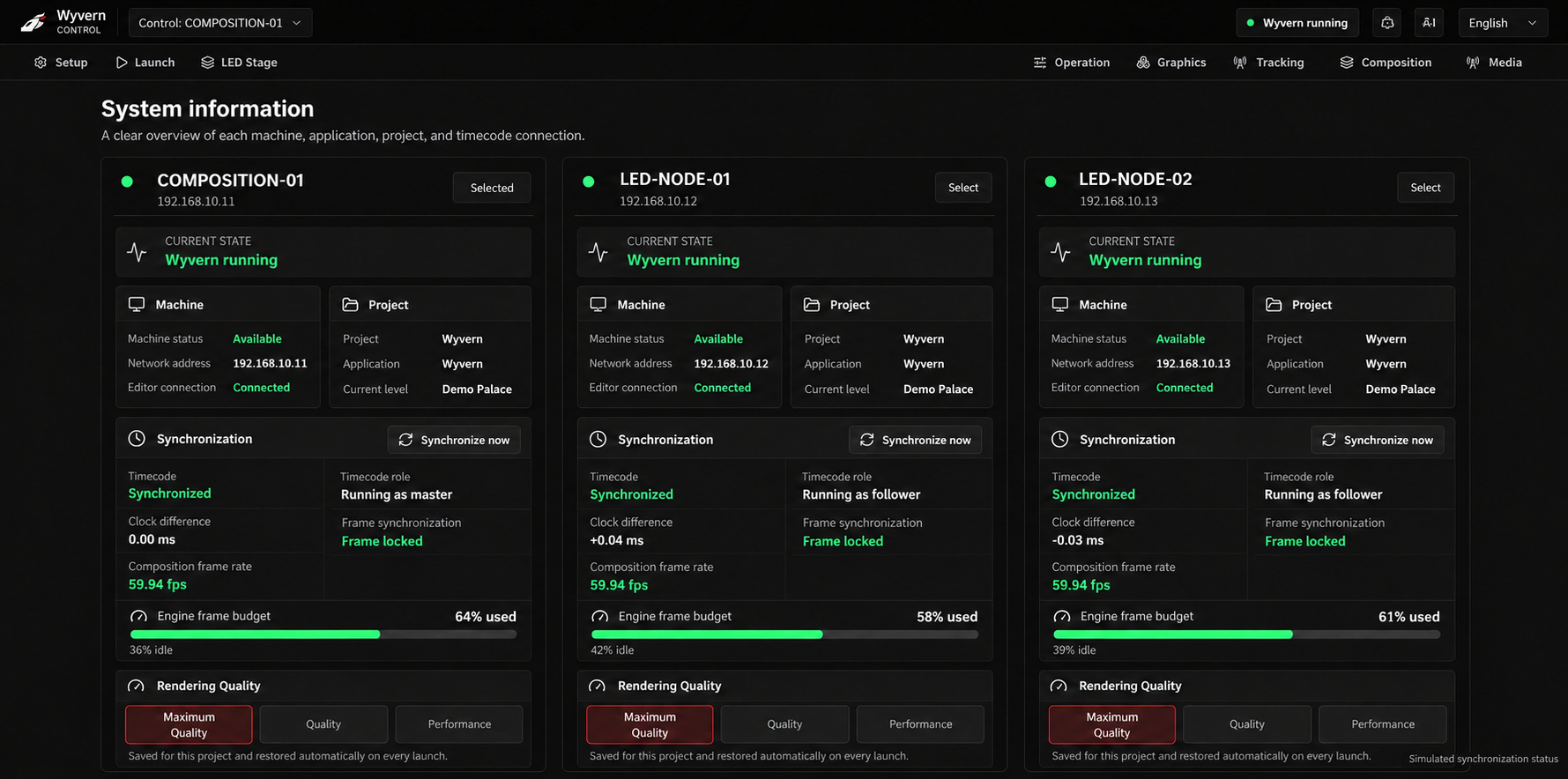
Stack your Wyvern engines in one place and manage each machine or a configured group from one interface. Synchronize production actions across engines and keep backup servers following the live show.

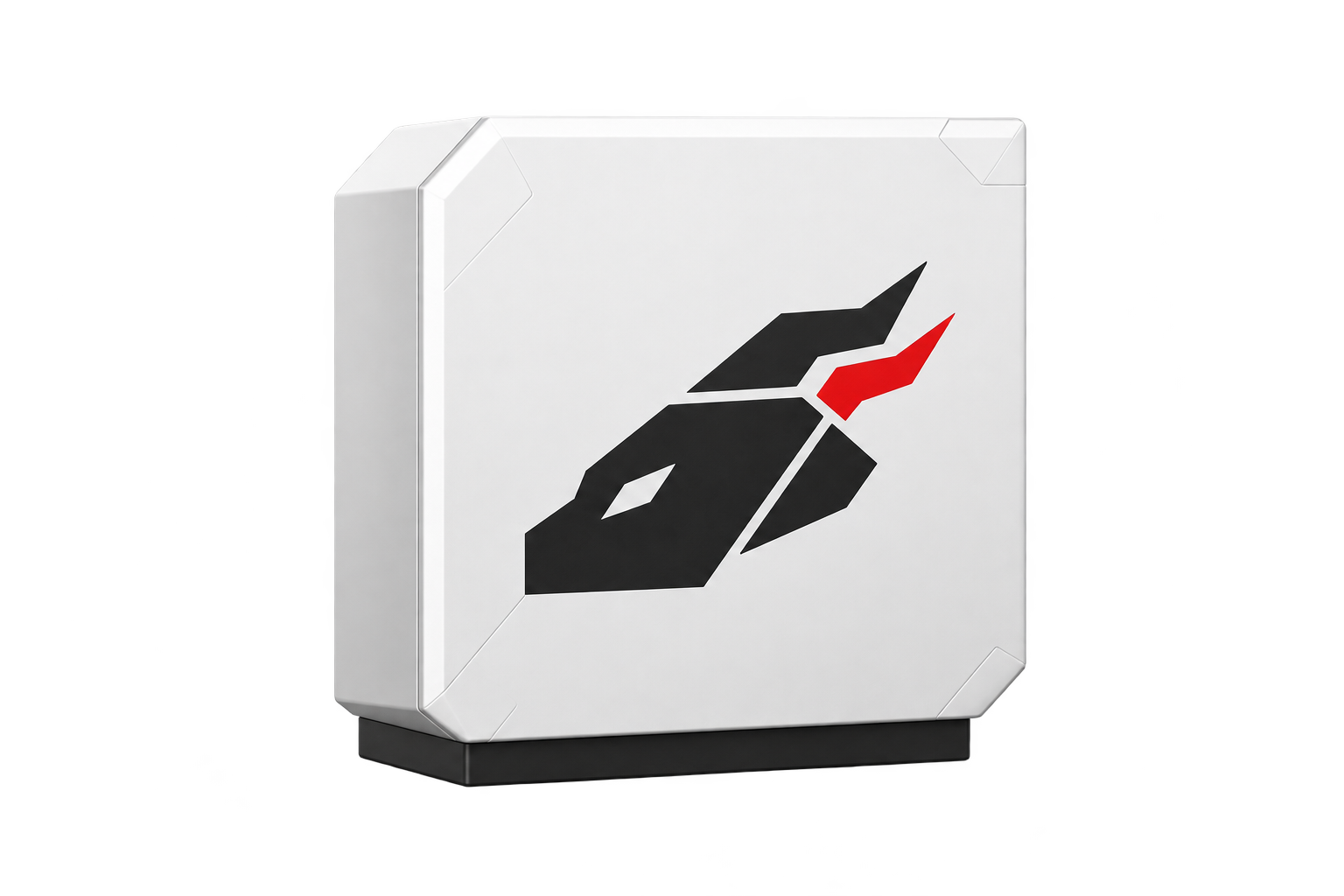
Three classic white Wyvern engines with the Wyvern logo
Engine states and synchronization in the Wyvern interface
Engine states and synchronization

Your engines, together in the rack

Install the production engines together in your rack or machine room. Reach each machine from the Wyvern interface and keep everyday operation in one connected workspace.

Individual and group control

Select an engine to control it individually, or mirror production commands across a configured group. Run the same profile, graphics and macro actions on multiple machines from one interface.

Wyvern engine synchronization system

Execute the same scheduled production actions at the same time across configured engines. The Wyvern engine synchronization system coordinates when those actions run on each machine.

Mirrored backup engines

Mirror production commands to running backup engines in real time. The standby engines follow the same operations and stay ready to be taken live if the primary engine develops a problem, helping maintain continuity of the show.

System status in one place

Inspect machine, project, source and engine synchronization states together. Move between individual engines while keeping the wider production setup in view.

Build around your production.

Capabilities depend on the selected modules, supported content, hardware and installation. Bring up to five HD camera inputs together on one hardware system. We can help map the right configuration to your production.

Plan the configuration

For broadcast, studios & live events

Put Wyvern to work in your production.

Tell us about your studio, show or live event.

Discuss your production